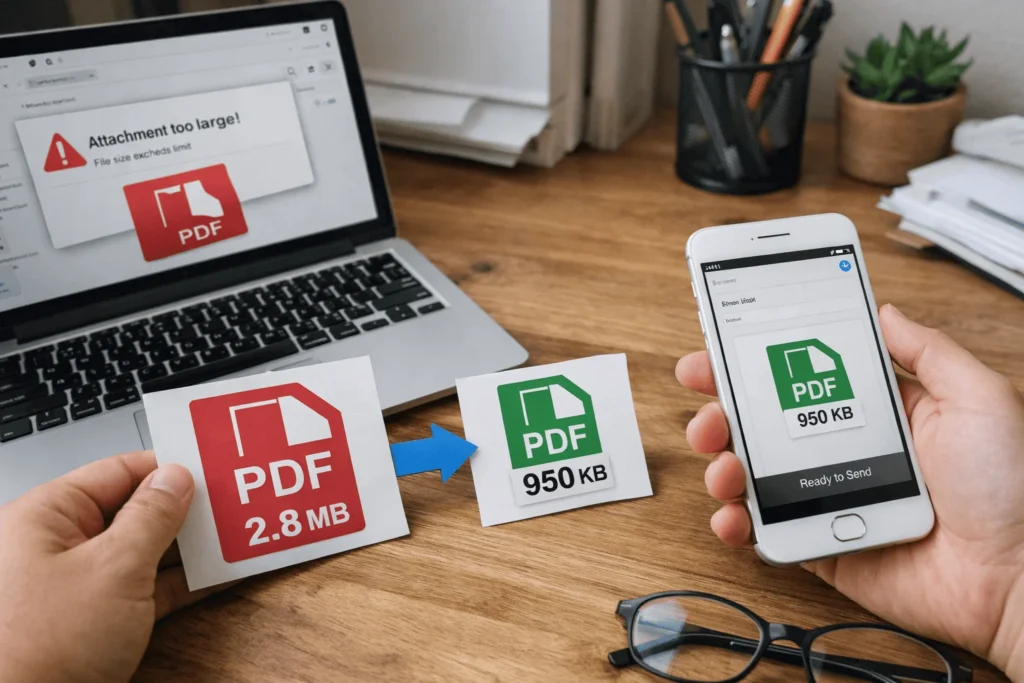
How to Compress PDF for Email Attachment (Under 1MB)
You’ve finished your work maybe a resume, invoice, project report, scanned documents, or legal file. You attach the PDF to an email, hit Send, and suddenly see the dreaded message:
“Attachment exceeds the allowed size limit.”
Most email services enforce strict email size limits, often between 10MB–25MB total, and many organizations restrict attachments to under 1MB for security, speed, or archival reasons. This becomes a real problem when PDFs especially scanned or image-heavy ones balloon to several megabytes without you realizing why.
Compressing a PDF under 1MB isn’t just about “making it smaller.” It’s about understanding what makes PDFs large, choosing the right compression strategy, and avoiding quality loss that breaks readability or professionalism.
This guide explains how to compress PDF for email attachment under 1MB, but more importantly, why each method works, when it fails, and how to handle real-world edge cases. If you want reliable results not trial-and error this article is for you.
Why PDFs Become Too Large for Email
Before compressing anything, it’s critical to understand where the file size comes from. PDFs are containers that can hold many types of data.
Common Reasons PDFs Exceed Email Size Limits
1. High-Resolution Images
Scanners and smartphones often embed images at 300-600 DPI, which is overkill for email viewing. Each page may contain multiple large bitmap images.
2. Scanned PDFs vs Text PDFs
- A text-based PDF (created from Word or Docs) stores characters efficiently.
- A scanned PDF stores entire pages as images, which massively increases size.
3. Embedded Fonts
PDFs often embed full font sets even if only a few characters are used. This ensures compatibility but adds weight.
4. Color Profiles and Metadata
ICC color profiles, EXIF data, and document metadata silently add kilobytes or megabytes.
5. Unoptimized Structure
Many PDFs are created for printing, not digital sharing. Print-focused PDFs prioritize quality over size.
Understanding these components helps you choose the right compression approach, rather than blindly shrinking the file.
What “Compress PDF Under 1MB” Actually Means
Reducing a PDF under 1MB is a constraint-based optimization problem. You are balancing three variables:
- File size (must be < 1MB)
- Visual clarity (must remain readable)
- Functional integrity (links, text, forms must still work)
Compression works by removing redundancy, downscaling data, or re-encoding assets not by magically deleting content.
Step-by-Step: How to Compress PDF for Email Attachment
Step 1: Identify the PDF Type (This Changes Everything)
Before compression, ask:
- Is this a text-based PDF?
- Is it a scanned/image-based PDF?
- Is it mixed (text + images)?
Why This Matters
Compression tools apply different algorithms depending on content. Image-heavy PDFs benefit most from image downsampling, while text PDFs benefit from font and structure optimization.
Step 2: Choose the Right Compression Level
Compression isn’t binary it’s tiered.
Common Compression Levels Explained
| Compression Level | Typical Size Reduction | Best For |
|---|---|---|
| Low | 10–30% | Text-heavy PDFs |
| Medium | 40–60% | Mixed documents |
| High | 60–80% | Scanned PDFs |
| Extreme | 80–95% | Archive-only or quick sharing |
Why Higher Compression Works
- Images are re-encoded using more efficient algorithms
- DPI is reduced to screen-optimized levels (usually 96–150 DPI)
- Redundant objects are removed
⚠️ Extreme compression can blur text in scanned documents. Use carefully.
Step 3: Optimize Images Inside the PDF
Images account for 70–90% of PDF size in scanned files.
What Actually Happens During Image Optimization
- Resolution reduction: From 300 DPI → 150 DPI (email-safe)
- Color space conversion: RGB → Grayscale (when color is unnecessary)
- Compression algorithm change: Lossless → Lossy where acceptable
Why This Works
Email viewing happens on screens, not printers. Screens cannot display ultra high DPI, so excess data is wasted.
Step 4: Remove Unnecessary Elements
Many PDFs carry invisible baggage.
Elements That Can Be Safely Removed
- Hidden layers
- Duplicate objects
- Unused fonts
- Metadata (author info, editing history)
- Thumbnails for each page
Each removal saves only kilobytes but together they matter when targeting under 1MB.
Step 5: Re-Save with Digital Distribution Settings
If the PDF was originally created for printing, it contains:
- CMYK color profiles
- High bleed margins
- Print marks
Re saving for screen or web strips these elements and dramatically reduces size.
Real-World Size Reduction Examples (Before vs After)
Example 1: Resume PDF
- Before: 2.4MB
- After: 420KB
- Method: Font optimization + metadata removal
- Quality Impact: None
Example 2: Scanned Invoice (5 Pages)
- Before: 8.1MB
- After: 980KB
- Method: Image downsampling (300 DPI → 150 DPI), grayscale conversion
- Quality Impact: Minimal, fully readable
Example 3: Project Report with Charts
- Before: 3.7MB
- After: 1.1MB → Further optimized to 890KB
- Method: Chart image recompression + font subset embedding
- Quality Impact: Slight color softening
Advanced Optimization Strategies (Expert-Level)
1. Convert Scanned PDFs to Searchable Text
Optical Character Recognition (OCR) converts images into text, replacing bitmap data with characters.
Why it helps
Text data is exponentially smaller than image data.
2. Split and Recombine Strategically
Compress sections separately:
- Text pages → low compression
- Image pages → high compression
- Then recombine for optimal balance.
3. Use Grayscale Selectively
Documents like invoices, legal forms, or ID proofs rarely need color.
Converting only image layers not the entire document preserves clarity.
4. Reduce Page Dimensions
Many PDFs use A3 or oversized layouts unnecessarily. Resizing to A4 or Letter reduces pixel count.
Common Edge Cases (And How to Fix Them)
PDF Still Over 1MB After Compression?
- Check if images are still above 150 DPI
- Ensure fonts are subset, not fully embedded
- Remove transparency layers
Text Became Blurry
- Compression was image-based on a scanned PDF
- Solution: OCR first, then compress
PDF Looks Fine on Desktop but Bad on Mobile
- Mobile screens reveal over-compression artifacts
- Use medium compression instead of high
Forms or Links Stopped Working
- Some compression removes interactive layers
- Preserve annotations during compression
Troubleshooting Guide
| Problem | Likely Cause | Solution |
|---|---|---|
| File size won’t go below 1MB | Heavy scanned images | Convert to grayscale + OCR |
| Blurry text | Excessive DPI reduction | Recompress at higher DPI |
| Colors distorted | CMYK → RGB conversion | Lock color profiles |
| PDF won’t open | Corrupted structure | Rebuild PDF from source |
Comparison: Compression Levels Explained in Practice
| Use Case | Recommended Compression |
|---|---|
| Resume / CV | Low–Medium |
| Legal documents | Medium |
| Scanned IDs | High |
| Academic papers | Medium |
| Internal reports | Medium–High |
FAQ:
Q: What is the safest size for email PDF attachments?
A: Under 1MB ensures compatibility with almost all email systems and corporate firewalls.
Q: Will compression reduce text quality?
A: Text-based PDFs retain quality. Scanned PDFs may soften slightly if images are compressed aggressively.
Q: Is OCR necessary?
A: Not always, but it’s extremely effective for scanned documents.
Q: Can I compress without losing images?
A: Yes, by reducing resolution instead of removing images.
Q: Why do scanned PDFs compress poorly sometimes?
A: Because each page is a full-resolution image—compression limits apply.
Q: Is grayscale better than color?
A: For text-heavy documents, yes. It reduces size dramatically with minimal downside.
7. How many pages fit under 1MB?
A: Depends on content. Text-only PDFs can exceed 50 pages; scanned PDFs may only fit 5–10 pages.
Final Optimization Checklist (Before Sending Email)
✔ PDF under 1MB
✔ Text readable on mobile
✔ Images optimized (≤150 DPI)
✔ Fonts subset embedded
✔ Metadata removed
✔ No broken links or forms
✔ Opens correctly on multiple devices
Conclusion
Compressing a PDF for email attachment under 1MB isn’t about clicking random buttons it’s about understanding how PDFs store data and making intelligent trade offs.
When done correctly, compression:
- Preserves professionalism
- Ensures email deliverability
- Saves time for both sender and receiver
Instead of struggling with failed attachments or unreadable files, follow a structured optimization approach. Once you understand why compression works, you’ll achieve consistent, reliable results every time.
If you treat PDF compression as a technical optimization task rather than a shortcut, hitting the under 1MB target becomes predictable, not frustrating.