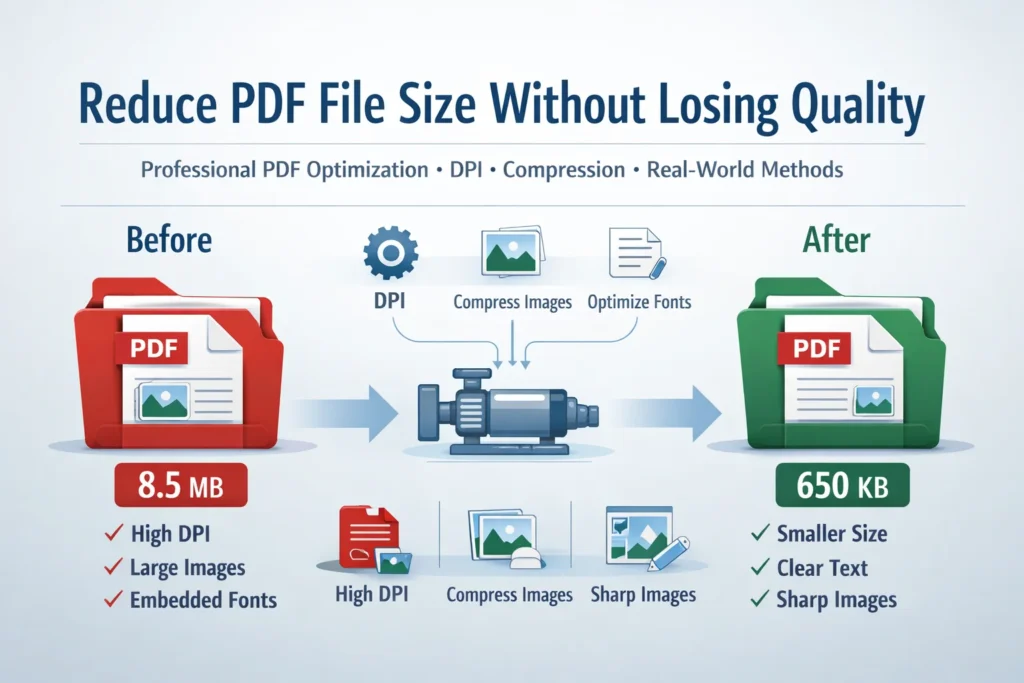
Reduce PDF File Size Without Losing Quality (Pro Method)
You’ve finished preparing a job application. The resume is polished, the portfolio looks sharp, and the cover letter reads perfectly. You attach the PDF, hit “Send,” and seconds later the email bounces back: Attachment exceeds size limit.
Or worse, you’re uploading documents to a government portal or client system that rejects your file without explanation. The PDF looks fine on your screen, yet it’s too large to submit. You try compressing it quickly, only to find that the text becomes blurry, images pixelate, and the document no longer looks professional.
This is the problem most people face: they reduce PDF size, but lose quality in the process.
The real challenge is learning how to reduce PDF file size without losing quality, using methods that respect how PDFs are built internally.
This guide is written from a professional, technical perspective. It explains why PDFs become large, how compression really works, and what exact steps you should follow to achieve high quality PDF compression without damaging your document.
Why PDF Files Become Large (Technical Breakdown)
Before optimizing anything, you must understand what actually contributes to PDF file size. PDFs are containers, not simple files. Inside them are multiple components that add weight.
1. Images (The Biggest Contributor)
Images account for 70–90% of most PDF file sizes.
Key factors:
- Resolution (DPI/PPI)
- Color depth (RGB vs CMYK vs Grayscale)
- Compression method (ZIP, JPEG, JPEG2000)
- Redundant embedded images
A single uncompressed A4 image scanned at 600 DPI in color can exceed 25–30 MB on its own.
2. Resolution and DPI Settings
PDFs do not inherently limit resolution. If an image is embedded at 600 DPI, the PDF preserves it fully—even if it’s unnecessary for screen viewing or printing.
Rule of thumb:
Higher DPI = exponentially larger file size.
(We’ll quantify this later.)
3. Fonts and Font Subsets
PDFs embed fonts to preserve appearance across devices. Problems arise when:
- Entire font families are embedded instead of subsets
- Multiple unused fonts remain embedded
- Fonts are duplicated across pages
4. Compression Algorithms
Not all compression is equal. Some PDFs store images:
- Without compression
- With inefficient lossless compression
- With repeated recompression layers
Poor algorithm choice leads to bloated files.
5. Metadata and Structural Bloat
Hidden data includes:
- Editing history
- XMP metadata
- Embedded thumbnails
- Unused objects and streams
This data doesn’t affect appearance but increases size.
Lossy vs Lossless Compression (Critical Difference)
Understanding this distinction is essential if your goal is to compress PDF without losing quality.
Lossless Compression
- Preserves 100% of original data
- No visual degradation
- Uses algorithms like ZIP or Flate
- Reduces size moderately (10–40%)
Best for:
Text-heavy PDFs, contracts, invoices, technical documents.
Lossy Compression
- Permanently removes visual data
- Reduces size aggressively (60–90%)
- Uses JPEG or JPEG2000 with quality settings
Best for:
Image-heavy PDFs where slight visual loss is acceptable.
Professional Rule
A pro method combines both:
- Lossless compression for text and vector data
- Controlled lossy compression for images only
Downsampling vs Recompression (Often Confused)
Downsampling
Reduces the resolution of images.
Example:
- Original image: 3000 × 2400 pixels
- Downsampled to: 1500 × 1200 pixels
Result: fewer pixels → smaller size.
Recompression
Keeps resolution but changes compression efficiency.
Example:
- Original: PNG (lossless, heavy)
- Recompressed to: JPEG (lossy, lighter)
Pro Insight
Downsampling affects dimensions.
Recompression affects storage efficiency.
Used incorrectly, both can destroy quality.
DPI vs PPI (What Actually Matters)
- PPI (Pixels Per Inch): Screen display resolution
- DPI (Dots Per Inch): Print resolution
PDFs are device-independent, but images inside them obey pixel math.
Mathematical Impact of DPI on File Size
Let’s compare an A4 page (8.27 × 11.69 inches):
| DPI | Pixel Dimensions | Total Pixels | Relative Size |
|---|---|---|---|
| 72 | 595 × 842 | ~0.5 MP | 1× |
| 150 | 1240 × 1754 | ~2.2 MP | 4× |
| 300 | 2480 × 3508 | ~8.7 MP | 16× |
| 600 | 4960 × 7016 | ~34.8 MP | 64× |
Doubling DPI increases file size roughly 4×.
This is why blindly scanning at 600 DPI creates massive PDFs.
The Pro PDF Optimization Framework (Step-by-Step)
This framework is designed to optimize PDF file size while preserving professional quality.
Step 1: Identify PDF Type
Ask:
- Is it text-based or scanned?
- Is it image-heavy or vector-heavy?
- Is it for screen, print, or email?
Each use case requires different settings.
Step 2: Audit Embedded Images
Check:
- Image resolution
- Color mode
- Compression type
Target:
- Screen/email: 120–150 DPI
- Print: 300 DPI (rarely more)
Step 3: Apply Smart Downsampling
Downsample only images above target DPI.
Never upscale lower-resolution images.
Step 4: Choose Correct Image Compression
- Text-heavy PDFs: lossless
- Image-heavy PDFs: high-quality JPEG (80–85%)
- Avoid multiple recompression cycles
Step 5: Optimize Fonts
- Subset fonts only
- Remove unused fonts
- Avoid embedding system fonts unnecessarily
Step 6: Remove Structural Bloat
- Strip metadata
- Remove thumbnails
- Clean unused objects
Step 7: Validate Output Quality
Zoom test:
- 100% (screen)
- 200% (fine detail)
- Print preview (if applicable)
Real Before-and-After Size Examples
Example 1: Resume PDF
- Original: 4.8 MB
- After optimization:
- Image downsampling: 300 → 150 DPI
- Font subsetting
- Final size: 620 KB
- Visual change: None
Example 2: Portfolio PDF (Images)
- Original: 18.2 MB
- After optimization:
- JPEG recompression (85%)
- Removed metadata
- Final size: 2.9 MB
- Visual change: Minimal, print-safe
Example 3: Scanned Document
- Original: 52 MB
- After optimization:
- Grayscale conversion
- 300 → 200 DPI
- OCR text layer
- Final size: 4.6 MB
Optimizing Scanned PDFs (Special Case)
Scanned PDFs are essentially image containers.
Best Practices:
- Scan in grayscale unless color is required
- Avoid scanning above 300 DPI
- Apply OCR to store text as vectors
- Compress images after OCR, not before
Why OCR Helps
Text stored as vectors takes kilobytes, while image text takes megabytes.
Reduce PDF Size for Email Attachments
Email limits are usually:
- 10 MB (corporate)
- 20–25 MB (consumer)
Email Optimization Strategy:
- Target 150 DPI
- Convert RGB images
- Remove background textures
- Flatten transparency
- Use mixed compression
Result: smaller files without visible degradation.
Common Mistakes That Ruin PDF Quality
- Recompressing the same PDF multiple times
- Downsampling text layers
- Using “maximum compression” blindly
- Flattening vector graphics unnecessarily
- Converting everything to images
Once damage is done, quality cannot be recovered.
Troubleshooting PDF Compression Issues
Problem: Text looks blurry
Cause: Text converted to image
Fix: Preserve vector text layers
Problem: Images pixelated
Cause: Over-downsampling
Fix: Increase DPI to minimum acceptable level
Problem: File size didn’t reduce
Cause: Images already optimized or fonts bloated
Fix: Remove unused fonts and metadata
Best Professional Settings Table
| Use Case | DPI | Color Mode | Compression |
|---|---|---|---|
| 120–150 | RGB/Grayscale | High-quality JPEG | |
| Screen Viewing | 150 | RGB | Mixed |
| 300 | CMYK/RGB | Lossless | |
| Scanned Docs | 200–300 | Grayscale | JPEG + OCR |
Professional PDF Optimization Checklist
- ✔ Identify document purpose
- ✔ Audit images and resolution
- ✔ Apply selective downsampling
- ✔ Choose correct compression type
- ✔ Subset fonts
- ✔ Remove hidden metadata
- ✔ Validate visually and structurally
Frequently Asked Questions
Q: Can I reduce PDF file size without losing quality completely?
A: Yes, by using lossless compression and smart image downsampling within perceptual limits.
Q: Why does repeated compression degrade PDFs?
A: Each lossy pass removes more data, compounding quality loss.
Q: Is higher DPI always better?
A: No. Beyond 300 DPI, gains are invisible but file size increases massively.
Q: Why are scanned PDFs harder to optimize?
A: Because all content is image-based, not vector-based.
Q: Does converting to grayscale help?
A: Yes. It can reduce image size by up to 60%.
Q: Are online compressors safe?
A: Technically effective, but not ideal for confidential documents.
Conclusion
Reducing PDF file size without losing quality is not about aggressive compression it’s about intelligent optimization. PDFs become large due to unnecessary resolution, inefficient image storage, embedded fonts, and hidden data. When you understand these components, you can control them precisely.